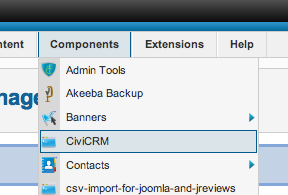
 Almost all management of members is done thru CiviCRM. To access it login into the /administrator section of the website and choose CiviCRM from the Components menu.
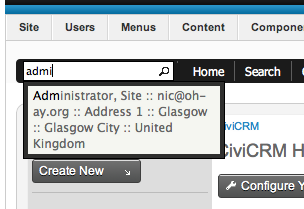
This loads up CiviCRM. If you are looking for details on a member, begin to type part of their name in the search box in the left hand corner. After a few seconds this will bring up suggested contacts – click on the one you want and this user’s full record will load.
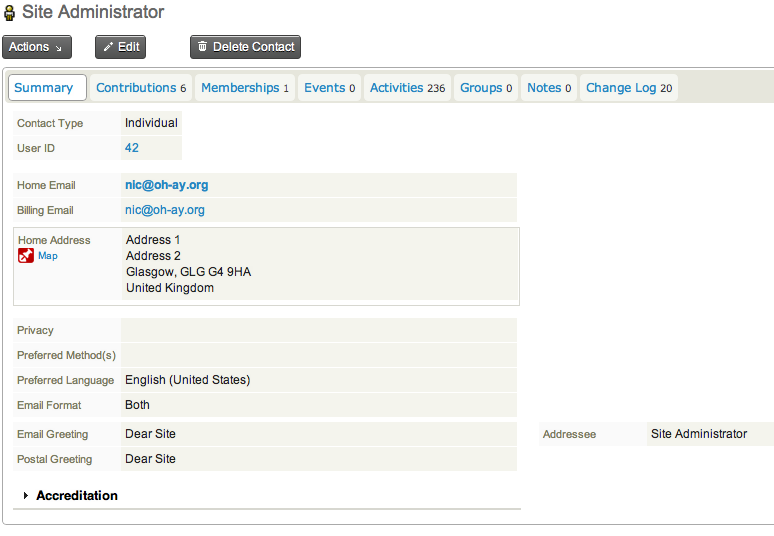
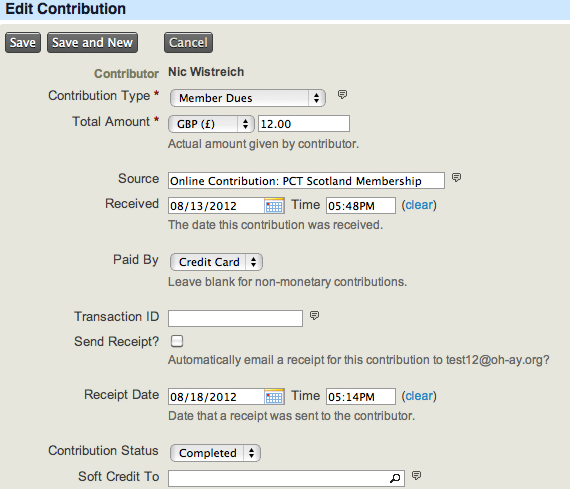
On the user’s record you can view (by clicking on the tabs) membership and payment history (called ‘Contributions’), notes and contact details. Clicking the ‘Accreditation’ word at the bottom will reveal their accreditation details provided at sign-up – and if they wish to appear in the directory or receive the newsletter. By clicking on the ‘Actions’ button, you can send an email, record a note, print a letter. By clicking the ‘Edit’ button, you can edit any of the details for this member (including opting them out of newsletters and the member directory. You can of course also Delete the member. The only thing this record doesn’t contain is their login password and access level (ie if they are a website administrator).
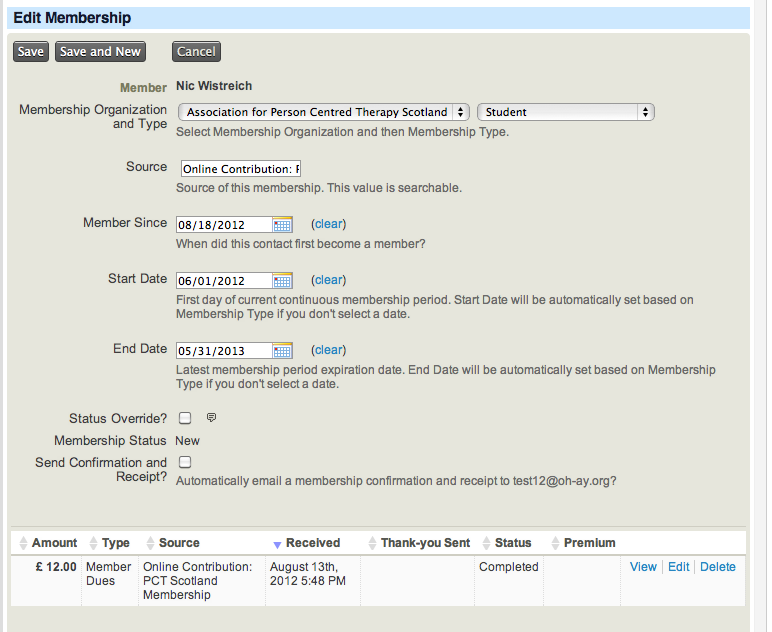
If you click on the Membership tab, you can see the type of membership the contact has, when they became a member and when their account will expire – and edit these details. Members are currently set to be either:
- Pending – meaning payment has not yet arrived
- New – the first 3 months of active membership
- Current – normal active membership
- Grace – one month after membership has expired
- Expired – no up-to-date membership.
They can also be set to cancelled or deceased if you don’t wish to delete the record from the database in that event for some reason.
There are a few simple screens where you can view recent activity on the site.
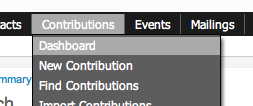
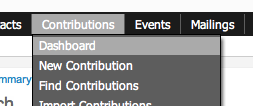
Contributions -> Dashboard will list all recent payments including pending ones and failed payments:
Members -> Dashboard will list all Members, both by type and in order of recently paid
You can also view any form of member date thru the Search menu, in particular Search -> Advanced Search. The Reports menu also has a number of pre-configured membership/donation reports.
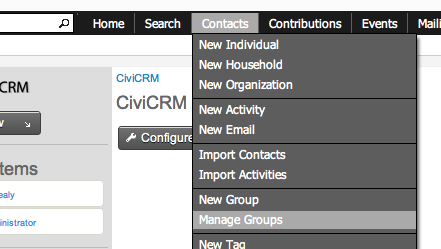
CiviCRM is large, but the basic functions you need to use to work it are pretty straightforward, so there’s no rush to explore the more powerful aspects like groups and mailings until you are comfortable with the basics. There is a full free book about using CiviCRM here – http://book.civicrm.org/user/ – and 9 times out of a 10, Googling, “how do I XXX a XXX on CiviCRM” will bring up a guide, explanation or forum response.